
Use Kindle settings, features, and habits to read faster, longer, smarter.
I’ve spent years reading on every Kindle model, from the basic Kindle to the Scribe, for both work and pleasure. My most useful Kindle Reading Tips aren’t about exploring every feature—they’re about making everyday reading more comfortable and productive.
In this guide, I share the settings, reading routines, and note-taking workflows that have worked for me, with practical tweaks to help you stay focused, read comfortably, and remember more of what you read.

Optimize Your Kindle For Comfort
Comfort is the base of all good Kindle Reading Tips. If your eyes strain, you stop reading.
Do this first:
- Set brightness for the room. Keep it just bright enough to see sharp text without glare.
- Schedule warmth at night on supported models. A warmer tone feels gentle in low light.
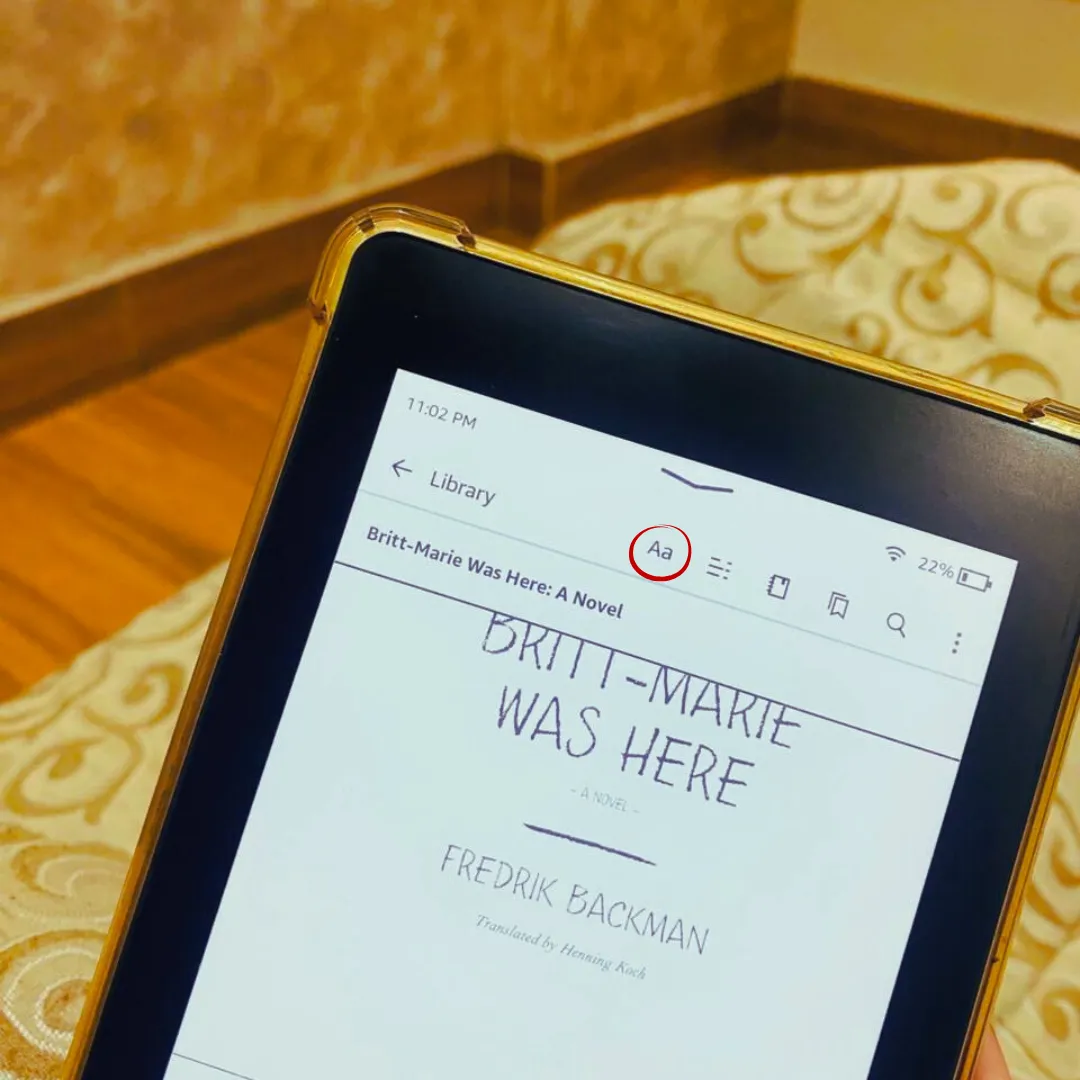
- Pick a font you can read for hours. Bookerly and Ember are safe bets.
Helpful settings to try:
- Font and weight. Increase size a bit more than you think. If your model supports bold weight, add one notch.
- Line spacing and margins. Wider spacing and medium margins reduce visual crowding.
- Dark Mode. Switch when reading at night or in dim rooms.
- Refresh. Turn on page refresh if you see ghosting. Turn it off to speed up page turns.
- Airplane mode. Use it when you do not need sync. It boosts battery life.
A quick routine that works for me at bedtime:
- Warmth to 18–24.
- Brightness to 6–9.
- Dark Mode on.
- Airplane mode on.
These small choices made my nightly reading calm and steady. That is the core of effective Kindle Reading Tips.

Master Kindle Reading Features
Great Kindle Reading Tips unlock built-in tools you may ignore. Try these power moves.
Core tools that save time:
- X-Ray. See people, places, and ideas at a glance. It is perfect for big casts.
- Word Wise. Get hints above tough words. It is great for reading in English as a second language.
- Vocabulary Builder. Every word you look up becomes a flashcard set. Review them after each session.
- Page Flip. Peek ahead without losing your spot. Use it for maps, charts, and timelines.
- Search, Dictionary, Translate, and Wikipedia. Long-press a word or phrase for instant context.
Audio and sync:
- Audible and Bluetooth. On supported models, listen and switch to reading as you like.
- Whispersync. Move between phone, tablet, and Kindle without losing your place.
Real-world example:
I read long epics with X-Ray open on tricky chapters. I also set Reading Progress to Time left in chapter. This simple combo keeps me engaged and reduces backtracking. These are practical Kindle Reading Tips you can use today.

Power User Tips For Notes, Highlights, And Exports
Reading is only half the game. The other half is what you keep. Kindle Reading Tips shine here.
Make better highlights:
- Highlight key lines, not whole pages. Aim for one idea per highlight.
- Add a note with a short tag like “thesis,” “method,” or “quote.” It helps later.
Use the notebook well:
- Tap the top of the page.
- Open Notebook to see all notes and highlights.
- Filter by book, chapter, or note type.
Export fast:
- Use the Export Notes option in the Notebook to send a summary by email.
- On phone or web apps, you can copy, search, and file notes in your knowledge system.
Kindle Scribe tips:
- Use sticky notes on any page to attach thoughts in context.
- In notebooks, convert handwriting to text to share clean meeting notes.
- Create templates for checklists, reading logs, or Cornell-style notes.
Personal workflow:
I tag notes with “todo,” “idea,” and “stat.” On Fridays, I export and file them. It takes ten minutes and keeps my research tight. That is one of my favorite Kindle Reading Tips for busy weeks.
Organize Your Library With Collections And Cloud
A tidy library means more reading and less hunting. These Kindle Reading Tips keep order simple.
Set up smart Collections:
- Create Collections by genre, project, course, or reading stage like Now, Next, Later.
- Add a book to more than one Collection when it fits many buckets.
Stay lean on-device:
- Filter to Downloaded to see what is on your Kindle.
- Archive finished books to the cloud. They stay yours and easy to restore.
Speed up delivery:
- Use Send to Kindle from desktop, mobile, or email. Add “Convert” in the email subject for PDFs you want in Kindle format.
- Keep file names clean. Use “Author – Title – Year” for fast scans.
Advanced option:
- Tools like library managers can fix metadata for large collections. Test on a few books first and keep backups. That keeps these Kindle Reading Tips safe and low risk.
My simple rule:
I keep no more than 30 books on-device. The rest live in Collections in the cloud. Finding the next read is instant.

Read Faster And Remember More
Speed without recall is noise. The best Kindle Reading Tips balance both.
Tune layout for pace:
- Larger font, wider spacing, and clean margins reduce regressions.
- Set Reading Progress to Time left in chapter. It creates natural sprints.
Build memory as you read:
- Use Vocabulary Builder’s flashcards for words you looked up this week.
- Add one-line notes that explain why a highlight matters.
- Review Notebook summaries after each reading block.
A simple, high-yield loop:
- Read 20–30 minutes with airplane mode on.
- Add one-sentence notes to key highlights.
- Review flashcards for five minutes.
- At week’s end, export notes.
This is the backbone of my Kindle Reading Tips for deep work.
Extra gains:
- Use Word Wise to move faster through dense non-fiction.
- Use Page Flip to compare charts or tables without losing flow.
Kindle For Study, Work, And PDFs
Many readers struggle with PDFs. These Kindle Reading Tips make them easier.
Better PDFs:
- Use Send to Kindle and add “Convert” in the subject. Many PDFs will reflow like normal Kindle books.
- On-device, try zoom, crop, and landscape for complex pages.
- On Scribe, mark up PDFs with the pen. Use notebooks for meeting minutes and action items.
Study stack:
- Create a Collection per class or project.
- Export highlights each week and drop them into your notes app.
- Use X-Ray and search to jump between terms and figures.
Workflows that hold up:
I read reports on Scribe, mark key lines, and add a sticky note that starts with “Next step:”. On Friday, I export my notes and assign tasks. These real-life Kindle Reading Tips help turn reading into results.
Privacy, Battery, And Troubleshooting
Reliable Kindle Reading Tips also cover safety and care.
Privacy controls:
- Open Settings and review privacy options. Turn off data sharing you do not need.
- Use Household and Family Library with care. Check what content is shared.
Battery basics:
- Keep brightness and warmth as low as is comfy.
- Use airplane mode when offline.
- Turn off page refresh unless ghosting shows up.
- Restart your Kindle every few weeks to clear small bugs.
Troubleshooting steps:
- Restart the device.
- Check for software updates.
- Remove and re-download the book if a file glitches.
- As a last step, back up notes and perform a reset.
A small warning:
Third-party tools can be great, but test them on a few files first. Keep copies of your books and notes. Safe habits are smart Kindle Reading Tips too.
Frequently Asked Questions of Kindle Reading Tips
How do I make my Kindle easier on my eyes at night?
Lower brightness and raise warmth on supported models. Turn on Dark Mode and use airplane mode to cut distractions.
What are the fastest Kindle Reading Tips to improve speed?
Increase font size, widen spacing, and set Reading Progress to Time left in chapter. Use Page Flip to scan charts without losing your place.
Can I organize Kindle books like folders?
Use Collections to group books by theme or project. A book can live in more than one Collection, which is more flexible than folders.
How do I export Kindle highlights and notes?
Open the Notebook for a book and choose Export Notes. On mobile or web apps, you can copy or share highlights to your notes tool.
Does Kindle work with library ebooks?
Yes, you can borrow Kindle format books from many libraries. Send them to your Kindle and read like any purchase.
How can I make my Kindle battery last longer?
Use low but comfortable brightness and warmth. Turn on airplane mode when you do not need sync and restart the device now and then.
Are there Kindle Reading Tips for learning new words?
Turn on Word Wise for gentle hints and use Vocabulary Builder. Review flashcards weekly to lock in new terms.
Conclusion
You now have a full set of field-tested Kindle Reading Tips. Tweak your screen, master core tools, shape better notes, and build a review loop. Small changes stack into big gains in comfort, speed, and memory.
Pick one section above and apply two tips today. Set a reminder to review your Notebook on Friday. If this helped, explore more guides, subscribe for new Kindle Reading Tips, or leave a comment with your favorite tweak.