

Yes — Kindle Paperwhite lets you create, edit, sync, and export notes directly while you read.
You can take notes on an amazon kindle paperwhite easily. I’ve used Kindle Paperwhites for years for work and study, and this guide walks through how note-taking works, step-by-step instructions, export and sync options, practical tips, and real limitations to expect. Read on to learn how to make the most of your Kindle Paperwhite notes for research, study, or personal reference.
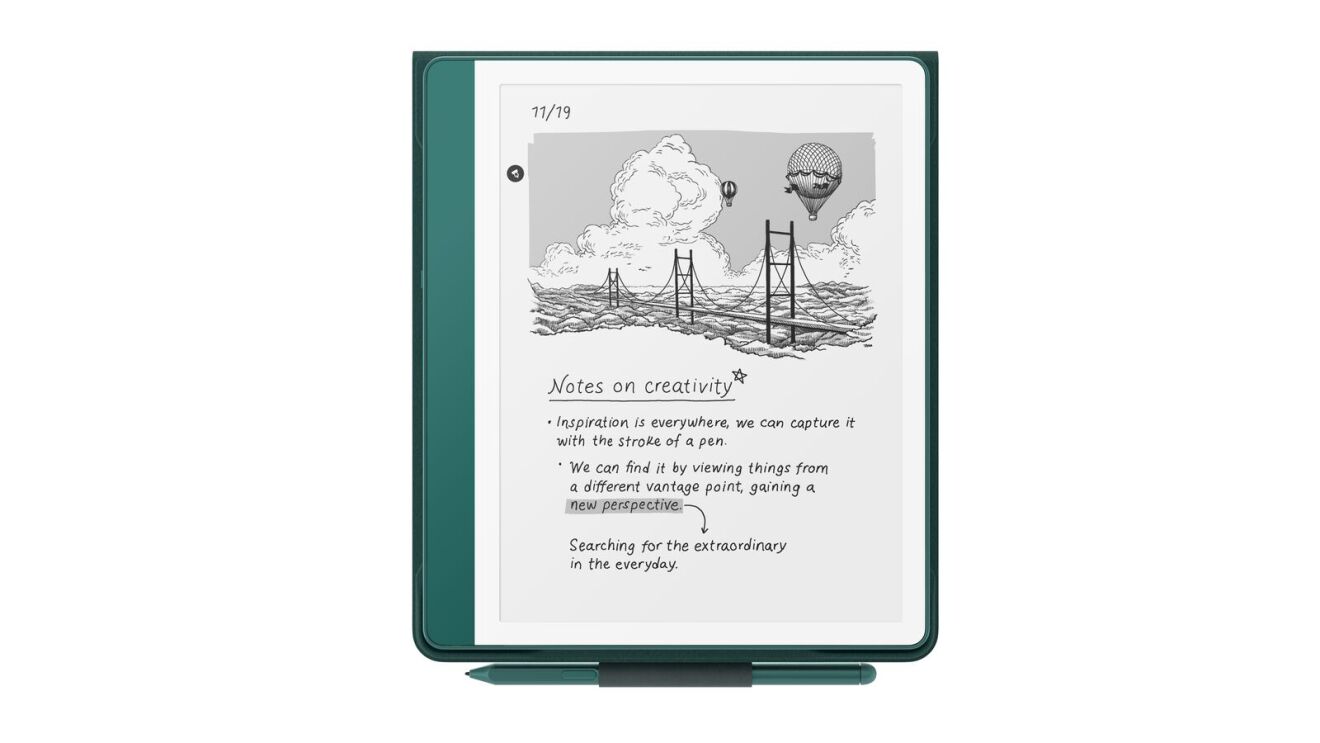
How note-taking works on Kindle Paperwhite
Kindle Paperwhite uses built-in highlight and note features that let you mark text and attach short annotations. When you select text, a small menu appears with options to highlight and add a note. Notes are saved to the device and, if you enable it, they sync to your Amazon account so you can access them from other devices or on the web.
I’ve found the interface fast and reliable for quick comments and studying. Keep in mind that Kindle notes are optimized for short entries rather than long-form note-taking. If you frequently write long notes, you may need to export them to a different app for more robust editing.

Step-by-step guide to taking notes on a Kindle Paperwhite
- Select the text you want to annotate.
- Tap and hold a word, then drag the selection handles to adjust the range.
- Choose Add Note from the pop-up menu.
- Type your note using the on-screen keyboard.
- Save the note.
- Tap Save or Done to attach the note to the highlighted passage.
- View or edit notes later.
- Open the book’s menu, select Notes, or tap the highlighted text to edit.
If you ask can you take notes on an amazon kindle paperwhite while offline, the answer is yes — the device stores notes locally and syncs when you reconnect. From experience, short notes and quick thoughts work best while reading.
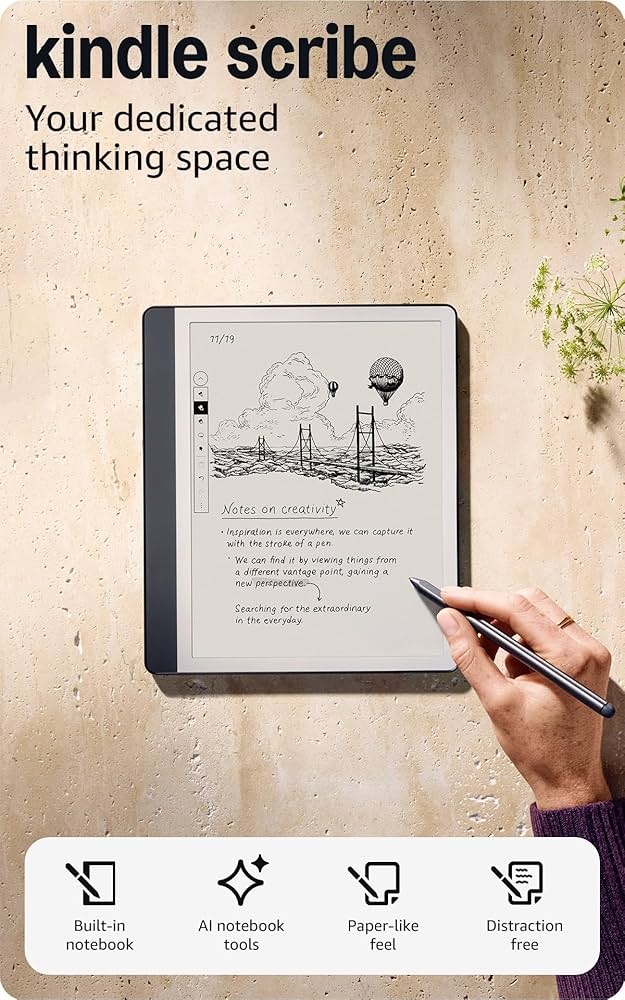
Exporting, syncing, and accessing your notes
Kindle sync puts notes in your Amazon cloud account when connected to Wi‑Fi. You can view synced notes on Kindle apps for phone, tablet, or the Amazon “Manage Your Content and Devices” web page. For deeper use, export notes using one of these options:
- Use the Kindle app or the web highlights page to copy-paste notes.
- Send notes by email if your Kindle model and account settings allow it.
- Use third-party tools or services that extract notes from your Amazon account to export into formats like CSV or plain text.
As someone who often compiles research, I copy notes into a separate document after long reading sessions. This keeps everything searchable and easy to tag. Remember that exporting may require extra steps depending on your region and firmware version.

Tips and best practices for effective note-taking
- Keep notes short and focused.
- Kindle’s keyboard is slow for long typing, so jot concise thoughts.
- Use consistent tags or shorthand.
- Start notes with a short code like “Q:” for questions or “Idea:” for concepts.
- Combine highlights with notes.
- Highlight key phrases and add a one-line note explaining why the passage matters.
- Sync regularly.
- Connect to Wi‑Fi to ensure notes upload to the cloud and show on other devices.
- Back up exported notes.
- Periodically copy notes to a notes app or cloud storage to prevent loss.
From my experience, pairing Kindle notes with a desktop note manager provides the best workflow. I highlight and add brief context on the Paperwhite, then expand and organize on my laptop.
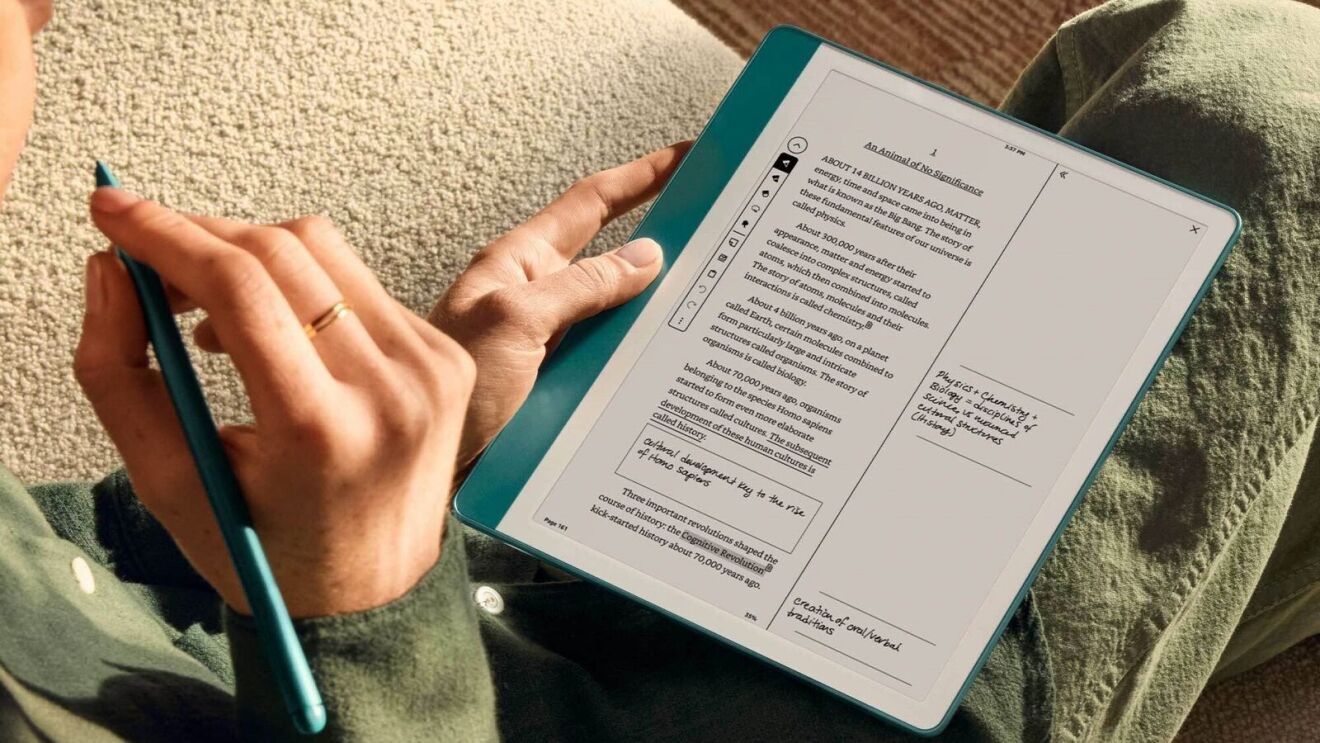
Limitations and alternatives
Kindle Paperwhite is great for inline notes, but it has limits. The on-screen keyboard is small, and longer typing is tedious. Notes are plain text only; you cannot add images, rich formatting, or audio annotations. If you need advanced note features, consider these alternatives:
- Use a tablet or laptop for richer note-taking and linking.
- Use a dedicated e-ink device with stylus support for handwritten notes.
- Export Kindle notes and import them into a note app for tagging and formatting.
If your main question is can you take notes on an amazon kindle paperwhite for intensive academic writing, the device will handle referencing and short annotations well but won’t replace a full note app. I learned this after trying to draft long summaries directly on the Paperwhite and switching to a laptop for final edits.

Frequently Asked Questions of can you take notes on an amazon kindle paperwhite
Can you take notes on an amazon kindle paperwhite while reading?
Yes. When you select text on the Kindle Paperwhite, you can add a note via the pop-up menu. Notes save to the device and sync to your Amazon account when online.
Where do my Kindle Paperwhite notes go after I save them?
Notes are stored locally and then uploaded to your Amazon cloud account when the device connects to Wi‑Fi. You can view synced notes in Kindle apps or the web interface.
Can I export notes from Kindle Paperwhite to other apps?
Yes, you can copy-paste notes from the Kindle app or use third-party tools and the web highlights page to export notes into plain text or CSV formats. Exporting methods vary by account settings and region.
Is the typing experience on Kindle Paperwhite good for long notes?
The on-screen keyboard is fine for brief notes but not comfortable for long-form writing. For longer notes, export and edit them in a dedicated notes app or on a computer.
Are Kindle Paperwhite notes searchable?
Yes, synced notes and highlights are searchable within the Kindle app and some web interfaces. Exported notes will be searchable in whichever app you import them into.
Can you take notes on an amazon kindle paperwhite without Wi‑Fi?
Yes. You can create and save notes offline; they simply sync to your Amazon account once you reconnect to Wi‑Fi.
Conclusion
You can take notes on an Amazon Kindle Paperwhite easily and reliably for reading, research, and light study. Use highlights, short annotations, and regular syncing to build a useful archive of ideas. For heavy writing or richly formatted notes, export your Kindle notes and continue work in a full-featured notes app. Try the workflow: annotate on the Paperwhite, export weekly, and organize those notes in one place — you’ll save time and keep your ideas accessible. If this was helpful, try your next reading session with a tagging system, or leave a comment with your favorite note-taking tip.


