

Yes. Kindle Paperwhite can open PDFs natively, though with some layout and reflow limits.
I’ve tested Kindle Paperwhite for years and helped colleagues convert files for travel and study. This guide explains exactly how can amazon kindle paperwhite read pdf files, what it does well, where it struggles, and practical ways to get clean, readable PDFs on your device. Read on for hands‑on tips, step‑by‑step workflows, and real examples that cut frustration and save time.
How Kindle Paperwhite handles PDFs
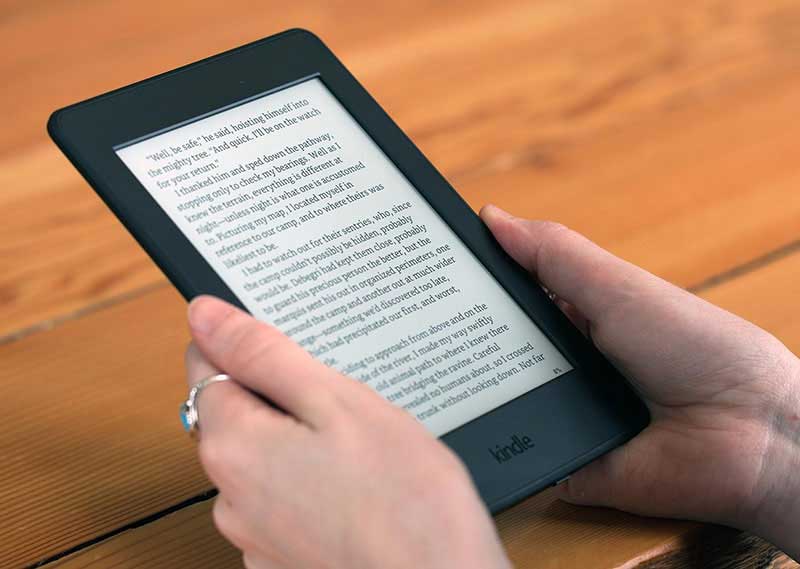
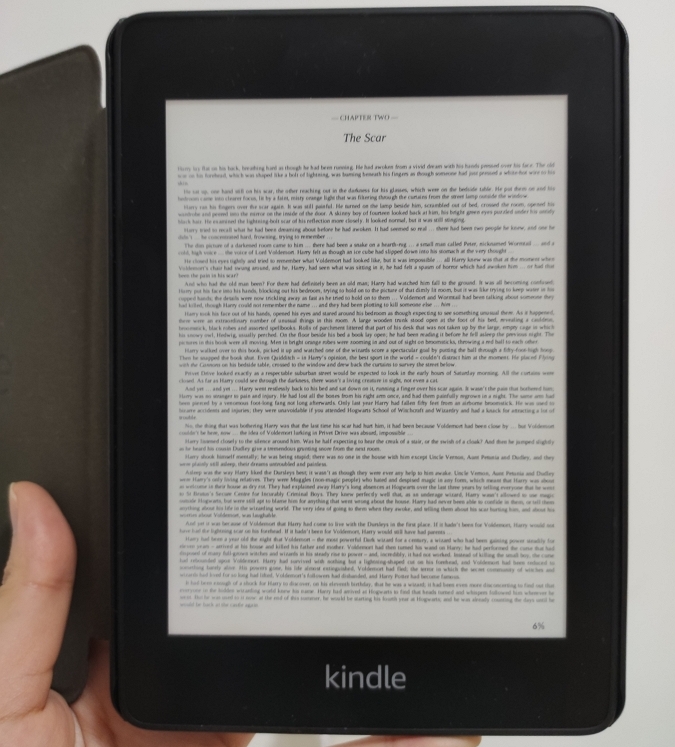
Kindle Paperwhite reads PDFs directly. You can transfer a PDF and open it like an ebook. The device preserves the original layout and images. That means columns, tables, and fixed designs stay intact. It also means text does not reflow the way native Kindle books do.
For simple, single‑column PDFs the experience is good. For complex or scanned PDFs you may need to convert or adjust. If you ask “can amazon kindle paperwhite read pdf” the short answer is yes, but how well depends on the PDF type and the workflow you use.
PDF features available on Kindle Paperwhite
- Open and view PDFs with native support.
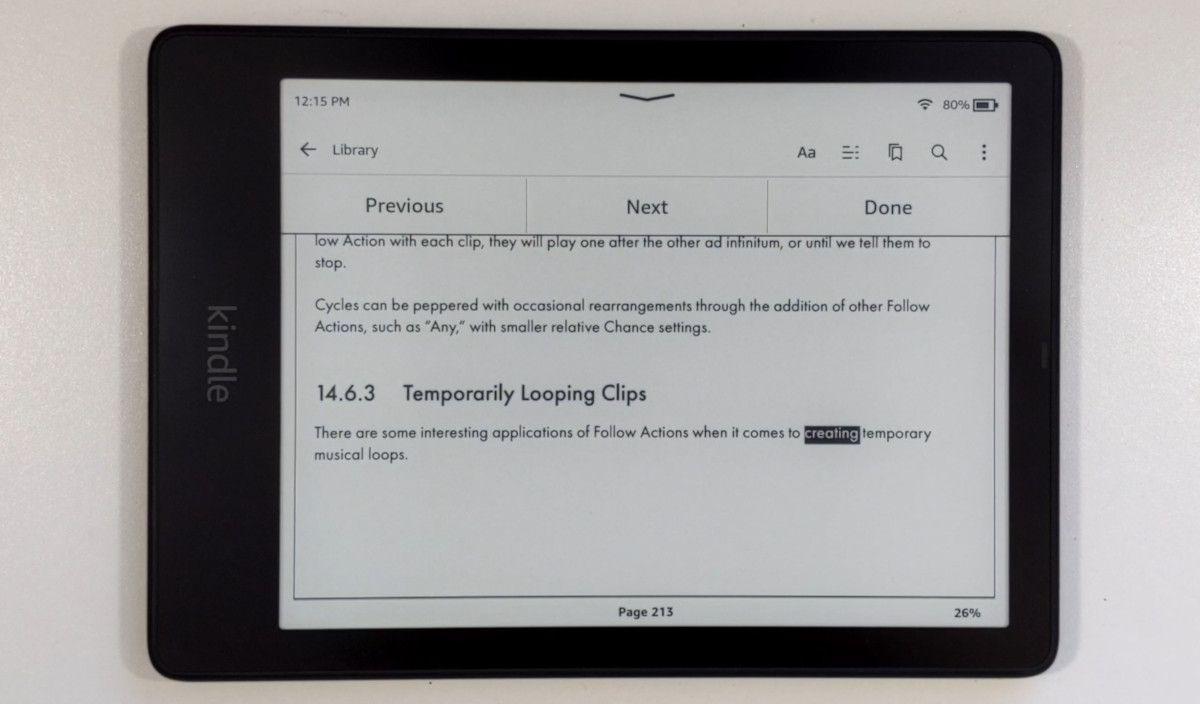
- Zoom, pan, and rotate pages for easier reading.
- Search within the PDF for keywords.
- Add highlights, notes, and bookmarks on many models.
- Sync PDFs via Send to Kindle and USB transfer.
These features make PDFs usable for many tasks. Still, you cannot change fonts or fully reflow multi‑column text on most PDFs. Keep that in mind when deciding whether to convert.

Methods to get PDFs on Kindle Paperwhite
- Send to Kindle email
Attach the PDF and add the word convert in the subject line to attempt reflow and conversion. This often helps for text‑heavy files and allows font size changes after conversion. - USB transfer
Connect your Kindle to your computer and copy PDFs into the Documents folder. This keeps the file intact and fast to access. - Kindle app sync
Use the Kindle app on your phone or PC to send personal documents to your Kindle library. - Calibre conversion
Use Calibre to convert PDFs to AZW3 or MOBI. Conversion can improve readability but may break complex layouts. - Third‑party PDF tools
Crop margins, compress images, or run OCR on scanned pages before transferring.
Each method has tradeoffs. If you need faithful layout preservation, use USB or Send to Kindle without conversion. If you want adjustable text, convert the file first.
Practical steps to convert PDF for better reading
- Assess the PDF
Check if it is scanned or text‑based. Scanned PDFs need OCR first. - Use Send to Kindle with convert
Email the file to your Send‑to‑Kindle address with convert in the subject. Wait for the file to appear in your library. - Convert with Calibre
Load the PDF in Calibre. Choose output AZW3. Adjust options for page setup and remove headers if needed. - Simplify layout
Convert two‑column pages to single column. Crop margins and remove unnecessary images. - Test on device
Transfer the converted file to your Paperwhite and check pagination, footnotes, and images.
These steps improve readability for many documents. When you wonder “can amazon kindle paperwhite read pdf” remember conversion often offers the best reading comfort for dense text.

Best practices for reading PDFs on Kindle Paperwhite
- Use landscape mode for wide pages. This gives larger text and fewer zooms.
- Crop margins to reduce wasted white space.
- Zoom, then tap and drag to pan. This is sometimes faster than conversion.
- Convert long text documents for adjustable fonts and line spacing.
- Keep file size modest to avoid slow page turns on older models.
When I travel, I convert long research papers before the trip. That saves time. For manuals or reference guides I keep the original PDF for exact layout.

Common PDF issues and troubleshooting
- Slow performance with large PDFs
Large image‑heavy PDFs can slow down page turns. Reduce image resolution or split the PDF into parts. - Bad conversion results
Complex layouts and tables may misalign. Try reformatting the source or use professional conversion tools. - Scanned pages with no selectable text
Run OCR before converting. OCR turns images into searchable text. - Missing fonts or garbled characters
Embed fonts in the PDF or convert using software that substitutes fonts safely. - Annotations not syncing
Personal document annotations may not sync the same way as purchased Kindle books. Use the Send to Kindle service for better sync behavior.
If you still face trouble, test a small sample file and iterate. Document complexity is the main driver of reading quality on Paperwhite.
Personal experience and tips from long use
I once received a 200‑page conference proceedings as a PDF. Reading it natively on a Paperwhite meant continuous zooming and panning. I converted the file with Calibre and removed double columns. The reflowed version let me change font size and read comfortably on flights. Key lessons I learned:
- Convert long text PDFs for comfort.
- Keep the original PDF for reference and figures.
- Use Send to Kindle convert for fast results, and Calibre for custom options.
These practical tips save time and deliver a far better reading experience.
When you should not use Kindle Paperwhite for PDFs
- Highly visual design work that requires precise color or layout.
- Large technical manuals with complex tables and diagrams.
- PDFs that rely on interactive elements or multimedia.
For these cases, use a tablet or a laptop PDF app. Kindle Paperwhite works best for text‑first documents.
Frequently Asked Questions of can amazon kindle paperwhite read pdf
Can Kindle Paperwhite open any PDF file?
Yes. Kindle Paperwhite can open most PDF files natively. Very large or encrypted PDFs may cause slowdowns or fail to open.
Will converting a PDF make it look exactly like the original?
No. Converting often changes layout, tables, and images. Conversion is best for text‑heavy PDFs where you want adjustable fonts.
How do I convert a PDF on Kindle Paperwhite?
Email the PDF to your Send‑to‑Kindle address with convert in the subject, or use Calibre to convert to AZW3. Test the output on your device.
Can I highlight and take notes in PDF files on Paperwhite?
Yes. Many Paperwhite models allow highlighting and notes in PDFs. Sync behavior may differ from purchased Kindle books.
Does Kindle Paperwhite read scanned PDFs with text-to-speech?
Not reliably. Scanned PDFs need OCR to become selectable text, and text‑to‑speech support is limited on Paperwhite. Use OCR tools before transfer.
Is reflow supported for multi-column PDFs?
Reflow is limited and often fails on multi‑column layouts. Single‑column documents reflow better when converted.
Can I listen to PDFs with Audible on Kindle Paperwhite?
Generally no. Audible narration links to supported Kindle books, not arbitrary PDFs. VoiceView may read menus and UI, but audio for PDF text is not a standard feature.
What is the best workflow for technical PDFs?
Run OCR, simplify layout to single column, and convert to AZW3 with Calibre. Keep original PDF for diagrams and exact figures.
Conclusion
Kindle Paperwhite can open PDFs and is a solid option for reading many documents. For clean, comfortable reading of long, text‑heavy PDFs, convert the file or use Send to Kindle with the convert option. For layout‑sensitive work, keep the original PDF and use a tablet or computer instead.
Try converting one sample PDF today and compare the results. Share your experience, subscribe for more guides, or leave a comment about the PDFs you read on your Kindle Paperwhite.


