
Open DJI Fly, choose a mode, confirm tracking box, then fly safely.
Linda was standing on a cliff in Norway when I locked the drone onto her and hit Active Track. It followed her along the ridge, kept her perfectly framed, and captured a shot that would have been impossible to get manually. She turned around, saw the footage on my phone, and immediately asked me to do it again. That was the moment I realized how powerful DJI intelligent flight modes really are when you know how to use them properly.
After flying DJI drones across multiple countries and conditions I have built a simple system for getting the most out of every intelligent flight mode available. This guide on how to use DJI intelligent flight modes covers everything step by step — from setting up each mode correctly to the safety tips that stop you from making expensive mistakes in the field. Whether you are shooting landscapes, following a subject, or trying to get that cinematic reveal shot, this guide gets you there.
What Are DJI Intelligent Flight Modes?
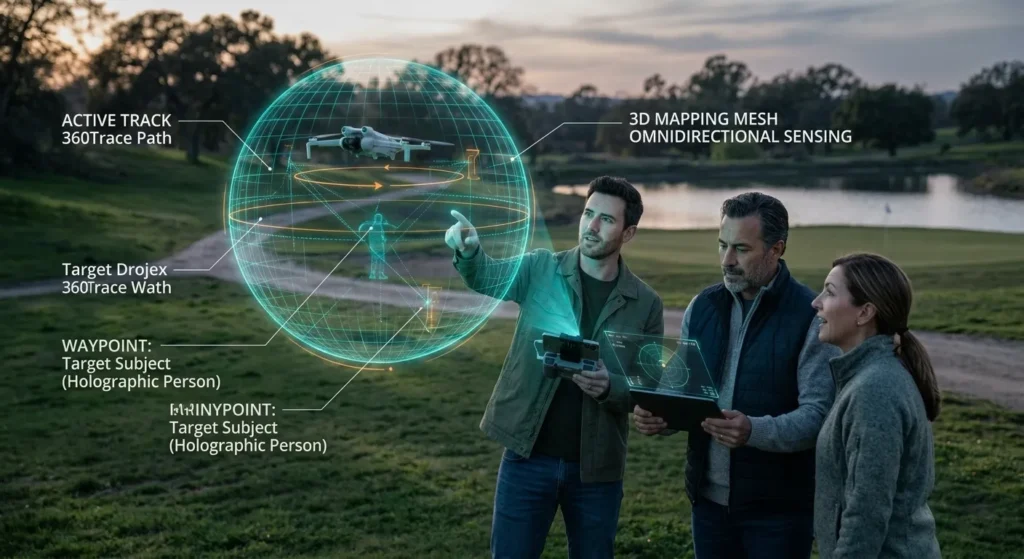
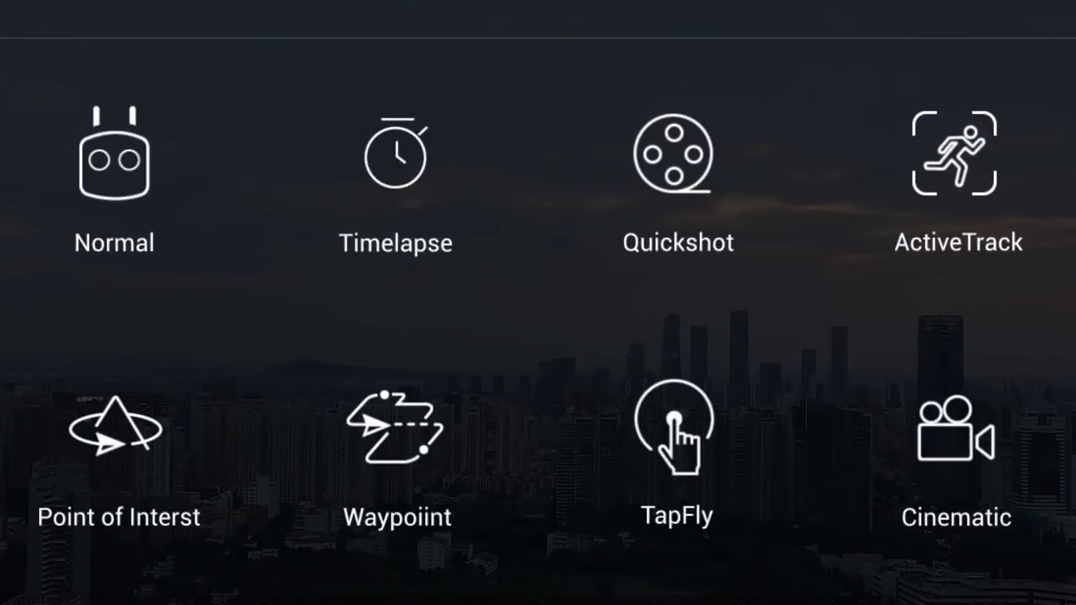
DJI Intelligent Flight Modes are smart camera and flight helpers that automate moves like tracking, orbits, and smooth reveals. Instead of micro-managing the sticks, you set a goal, and the drone handles the path and gimbal work.
Most new models use the DJI Fly app, while older models use DJI GO 4. Names may vary by aircraft, but the idea is the same: you choose a subject or path, confirm settings, and let the drone execute while you monitor. If you want to know how to use dji intelligent flight modes well, you should learn when to trust them and when to take manual control. This guide shows how to use dji intelligent flight modes step by step, with real examples and clear limits.
Compatibility and Setup
Before you learn how to use dji intelligent flight modes, check what your drone supports. The feature set differs by model and firmware.
- DJI Fly app drones: Mini 3/3 Pro, Mini 4 Pro, Air 2/2S, Air 3, Mavic 3 series, Avata 2 for certain modes.
- DJI GO 4 drones: Mavic Pro/2, Phantom 4 series, Inspire 2, Spark.
Key setup steps:
- Update firmware for aircraft, controller, and batteries.
- Calibrate compass and IMU if the app prompts you.
- Set RTH altitude above nearby obstacles.
- Enable obstacle avoidance and APAS if available.
- Check local rules, airspace, and weather.
Pro tip: On my Air 2S, I confirm GPS lock and home point update before any smart mode. It saves stress if you need RTH. This is a core habit when you practice how to use dji intelligent flight modes in new locations.
Pre-Flight Checklist for Safe Intelligent Flights
These quick checks keep your drone and footage safe when you try how to use dji intelligent flight modes:
- Props secure, battery warm and at least 60%.
- SD card has space; set video resolution and color profile first.
- ND filter picked to keep shutter speed near 1/(2×frame rate).
- Subject has contrast and space to move; avoid thin branches and wires.
- Wind under your drone’s spec; avoid heavy gusts and rain.
- VLOS maintained; spotter helps with tracking shots.
I lost ActiveTrack once when a runner went behind a tree at dusk. Since then, I plan paths with a clear sky backdrop and avoid low, flat light. Small steps like these turn how to use dji intelligent flight modes into clean, safe flights.
Core Modes and How to Use Them
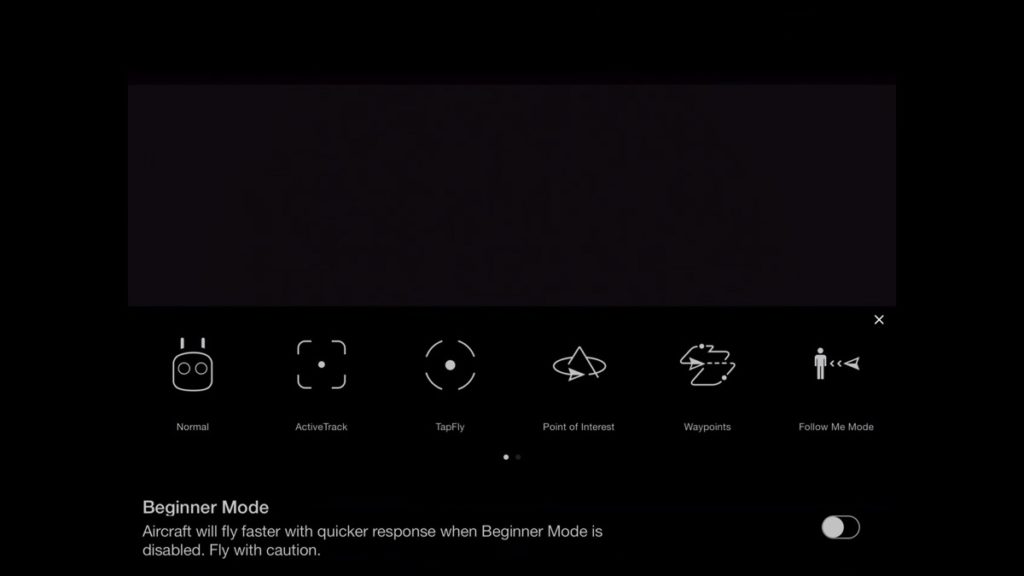
Different names, same idea: pick, confirm, supervise, and be ready to take over. Below are the modes I use most with exact steps and tips. If you are unsure how to use dji intelligent flight modes in the field, start in a wide, open park and keep the drone close.
FocusTrack: ActiveTrack, Spotlight, and POI
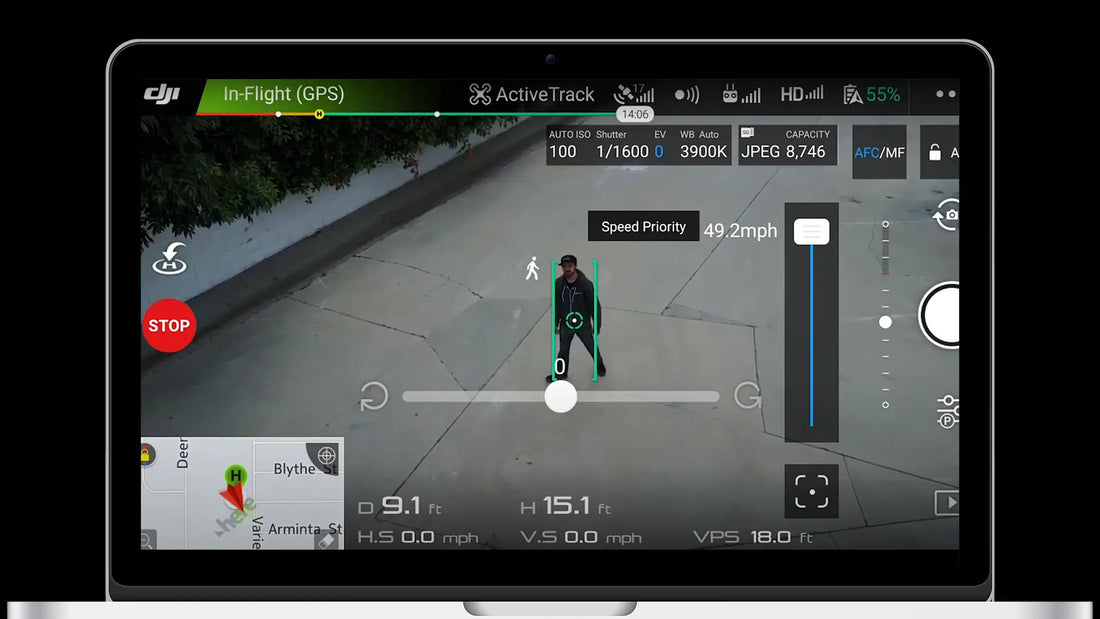
ActiveTrack (Trace/Parallel)
- In camera view, box your subject or tap the plus.
- Pick Trace (follow from behind) or Parallel (track from the side).
- Set distance and altitude. Press Go.
- Control gimbal tilt and speed to taste.
Spotlight
- Select the subject.
- Use the sticks for flight; gimbal stays locked on target.
- Great for reveals and parallax with full pilot control.
Point of Interest (POI)
- Select subject, set orbit radius and speed.
- Choose direction. Start and adjust gimbal tilt for composition.
Field notes:
- Keep subjects in uniform light. High backlight can break locks.
- For bikes and runners, Parallel looks fast and cinematic but needs more room.
- I shoot 60 fps for action and 30 fps for slow scenes to reduce motion blur.
QuickShots: Dronie, Rocket, Circle, Helix, Boomerang, Asteroid
These are one-tap presets for short clips.
- Frame subject and choose a QuickShot.
- Confirm distance and height.
- Press Start and stand still. The drone flies and records.
Tips:
- Practice dronie with 40–60 m distance for travel clips.
- Helix and Boomerang need more space. Watch wind drift.
- Use QuickShots to open or close videos, then cut to manual B-roll.
Waypoints and Hyperlapse
Waypoints
- Fly to point A, set WP1. Repeat for more points.
- Set speed, altitude, heading, gimbal pitch, and actions.
- Save mission for repeat flights.
Hyperlapse (Free, Circle, Course Lock, Waypoints)
- Choose interval (2–5 s) and total frames.
- Lock exposure before start to avoid flicker.
- Use Waypoints Hyperlapse for smooth city scenes.
My best client clip was a sunrise waypoint mission over a marina. I set three points the night before in daylight, then returned at blue hour. Same path, perfect light, zero guesswork.
Course Lock, Home Lock, Tripod/Cine
Course Lock
- Locks a forward course so lateral moves create clean parallax.
Home Lock (older models)
- Pull back to fly toward home regardless of heading.
Tripod/Cine
- Slows inputs and smooths gimbal response for tight spaces.
If you want to master how to use dji intelligent flight modes, learn these “control” modes. They save shots when space is tight or when you need steady motion.
Creative Workflows and Real-World Examples
For real estate
- Use POI at low speed with a 60–80 m radius.
- Add Spotlight for driveway reveals and pool highlights.
For travel vlogs
- QuickShots for intros, then ActiveTrack for hike trails.
- Mix high and low angles for depth. Add a gentle gimbal tilt.
For action sports
- Parallel ActiveTrack for runners and cyclists on straight paths.
- Keep 30–40 m offset for safety and cleaner framing.
In my shoots, I pair a 24–34 mm equivalent FOV for POI and a 70 mm digital zoom for detail in Spotlight. That mix adds scale. When you plan how to use dji intelligent flight modes for a story, think wide for context, tight for emotion.

Safety, Legal, and Battery Management Tips
Stay legal
- Check airspace. Get needed approvals. Respect privacy and local rules.
- Keep VLOS. Use a spotter in busy areas.
Stay safe
- Set RTH altitude and test it once per location.
- Avoid tracking under tree canopies and power lines.
Manage power
- Smart modes can use more battery due to path changes.
- Stop at 25–30% to keep a buffer for wind or a go-around.
When you plan how to use dji intelligent flight modes near people, increase standoff distance and lower speed. Smooth and slow is both safer and more cinematic.
Troubleshooting Common Issues
Losing subject lock
- Increase contrast: pick a subject with a bright shirt or solid color.
- Avoid crossing behind poles, trees, or crowds.
Poor GPS or compass errors
- Move to open sky; recalibrate only if prompted.
- Wait for home point update before using smart modes.
Shaky or overexposed clips
- Use an ND filter and lock exposure.
- Lower sharpness and adjust gimbal tilt speed for smoother moves.
Firmware or app glitches
- Update firmware, clear app cache, and restart devices.
- Test how to use dji intelligent flight modes in a low-risk area after updates.
Frequently Asked Questions of how to use dji intelligent flight modes
Do I need obstacle avoidance turned on for tracking?
It is strongly recommended. Obstacle sensors can reduce risk, but they are not perfect and can miss thin branches or wires.
Which app do I use for these modes?
Most new drones use DJI Fly. Older drones like the Mavic 2 or Phantom 4 use DJI GO 4 for Intelligent Flight Modes.
Can I change camera settings during a smart mode?
Yes. You can adjust exposure, frame rate, and gimbal tilt while the mode runs. Lock exposure first to avoid flicker in Hyperlapse.
How do I keep the subject from dropping out of ActiveTrack?
Keep a clear background and steady speed. If the subject moves behind an object, pause or climb to maintain line of sight.
What’s the best way to practice safely?
Start in a large, open field with low wind. Keep the drone close, fly slow, and learn how to use dji intelligent flight modes one at a time.
Conclusion
Smart modes can turn a tricky flight into a clean, stable shot. Start simple, give the drone room to work, and be ready to take over when the scene gets complex. If you focus on light, background, and a safe path, you will learn how to use dji intelligent flight modes with confidence and capture great footage.
Try one mode on your next flight and review the results. Then add another. Subscribe for more field guides, ask questions in the comments, and share your best clips so we can all learn together.