
Register your Kindle Paperwhite by connecting it to your Amazon account via Wi‑Fi or USB in minutes.
I’ve set up dozens of Kindle devices for friends and family. That is why I am expert in registering Amazon Kindle. Today I will show walk how to register Amazon Kindle Paperwhite step by step. This guide explains each action clearly, covers common issues I’ve seen, and gives practical tips to keep your Kindle linked, secure, and ready to read. Read on to confidently register your Kindle Paperwhite and get the most from your device today.
Why register your Kindle Paperwhite?
Registering links your Kindle to your Amazon account. This lets you buy and download books, sync progress, and access Kindle services. Knowing how to register Amazon Kindle Paperwhite ensures you can restore purchases if you lose or change the device. Registration also enables features like Whispersync, Kindle Unlimited, and parental controls.
What you need before you register
Prepare these items before you begin. This makes the process smooth and fast.
- Active Amazon account email and password. Keep them handy.
- Stable Wi‑Fi connection. Registration usually needs internet.
- Kindle Paperwhite charged to at least 20 percent. Avoid interruptions.
- Optional USB cable to register via computer if Wi‑Fi fails.
Step-by-step: how to register amazon kindle paperwhite
Follow these steps to register your Kindle Paperwhite. I include notes from real setups to help avoid mistakes.
- Turn on the Kindle Paperwhite
- Press and hold the power button until the screen lights. Wait for the home screen.
- Select language and set up basics
- Choose your language and follow the on‑screen prompts. These are quick.
- Connect to Wi‑Fi
- Tap the Wi‑Fi icon or open Settings > Wi‑Fi. Pick your network and enter the password.
- Sign in to your Amazon account
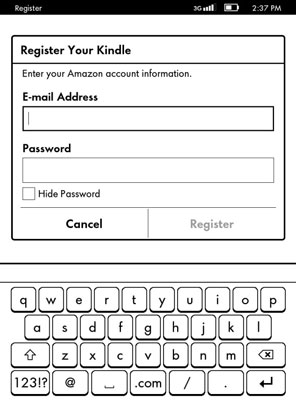
- When prompted, enter your Amazon email and password. This is the key step to register.
- Confirm device registration
- The Kindle will show your account name once registered. You may see a message that the device is linked.
- Sync and download content
- Open Settings > Sync My Kindle to download purchases and sync reading progress. Wait a few minutes for content to appear.
- Add payment or set up Kindle Store preferences
- Visit Manage Your Content and Devices on Amazon to set payment methods and device name if needed.
If Wi‑Fi is not available, you can register via USB:
- Connect Kindle to a computer using a USB cable.
- Open a browser and sign in to your Amazon account on the computer.
- Use the Manage Your Content and Devices page to send content or check device status.
- Some older models may require special steps; consult Amazon account settings.
Notes from my experience:
- Typing passwords on the on‑screen keyboard can be slow. Use a strong but simple password or register quickly and enable two‑factor authentication later.
- If you have many devices, rename this Kindle in your Amazon device list for clarity.

Troubleshooting common registration issues
Here are fixes for problems I’ve seen often when people try to register. Try these quick checks first.
- Wrong account credentials
* Double‑check your Amazon email and password. Reset password if needed. - Weak or no Wi‑Fi
- Move closer to the router or restart the router. Try connecting to a phone hotspot.
- Device shows “Not Registered”
- Restart the Kindle. Then sign in again via Settings > Your Account.
- Two‑factor authentication blocks sign in
- Retrieve the code from your phone or authenticator app and enter it. You can authorize the device in your Amazon account settings.
- Device already registered to another account
- Deregister it from the previous account via Manage Your Content and Devices, or ask the previous owner to deregister.
Managing, deregistering, and transferring your Kindle Paperwhite
Knowing how to register Amazon Kindle Paperwhite also means knowing how to manage it later. These steps help when you sell, gift, or troubleshoot the device.
- Deregister on the Kindle
- Go to Settings > My Account > Deregister. This removes personal data and unlinks the device.
- Deregister from Amazon online
- Sign in to Amazon, open Manage Your Content and Devices, choose Devices, select the Kindle, and click Deregister.
- Transfer to a new owner
- Deregister first. The new owner should then register with their own account.
- Change the registered account
- Deregister, then register again with the new account credentials.
- Check registered devices
- Use Manage Your Content and Devices to view and rename devices for easy identification.
My tip: always deregister before selling. I once received a secondhand Kindle that was still linked to the seller’s account. It took extra time to sort out permissions with customer support.

Privacy, security, and account tips
Protect your content and account once you know how to register Amazon Kindle Paperwhite. These rules keep your eBooks safe.
- Use a strong Amazon password and enable two‑factor authentication for extra security.
- Review device access in Manage Your Content and Devices regularly.
- Use parental controls or Kindle FreeTime for shared devices.
- Back up important highlights and notes using the Export Notes option or Amazon’s cloud services.
- Keep Kindle software updated via Settings > Device Options > Advanced Options > Update Your Kindle.

Frequently Asked Questions of how to register amazon kindle paperwhite
How do I register my Kindle Paperwhite to my Amazon account?
Sign in on the Kindle during setup by entering your Amazon email and password. If you miss it, go to Settings > My Account > Register to sign in.
Can I register a Kindle Paperwhite without Wi‑Fi?
You can register via a computer and USB, or by using a phone hotspot. A direct Wi‑Fi connection is the easiest method.
Why does my Kindle say it’s already registered?
It may still be linked to another account. Deregister it from the previous account through Manage Your Content and Devices or ask the owner to deregister.
What if I forget my Amazon password during registration?
Use the Amazon password reset option on another device. Resetting takes a few minutes and lets you return to the Kindle setup.
Will I lose books if I deregister my Kindle Paperwhite?
Books remain in your Amazon account cloud. Deregistering removes them from the device but you can redownload purchases after re‑registering.
How do I change the account linked to my Kindle Paperwhite?
Deregister the device, then register again with the new Amazon account credentials. This transfers the device to the new account.
Conclusion
Registering your Kindle Paperwhite is simple when you know the right steps. Follow the setup prompts, connect to Wi‑Fi, and sign in to your Amazon account to unlock purchases, sync, and cloud features. Keep your password secure, deregister before transferring the device, and use the Manage Your Content and Devices page to stay in control. Now that you know how to register Amazon Kindle Paperwhite, go ahead, set up your device, and start reading—then share your favorite book in the comments or subscribe for more tips.